
Basic Computer & Fundamentals
What is a Computer?
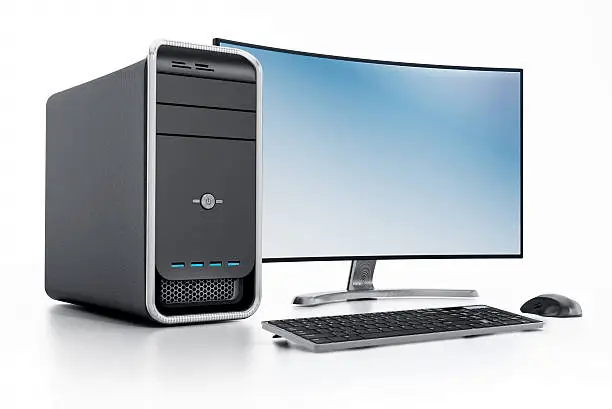
A computer is an electronic machine that collects information, stores it, processes it according to user instructions, and then returns the result. A computer is a programmable electronic device that performs arithmetic and logical operations automatically using a set of instructions provided by the user.
Early Computing Devices
People used sticks, stones, and bones as counting tools before computers were invented. More computing devices were produced as technology advanced and the human intellect improved over time.
Early History of Computer
One of the earliest and most well-known devices was an abacus. Then in 1822, the father of computers, Charles Babbage began developing what would be the first mechanical computer.
We got our first laptop in 1981 and it was introduced by Adam Osborne and EPSON.
Generations of Computers
In the history of computers, we often refer to the advancements of modern computers as the generation of computers. We are currently on the fifth generation of computers. So let us look at the important features of these five generations of computers.
Booting Process
When you turn on your computer, have you noticed it takes a moment to start? That’s called Booting.
The booting process is how the computer gets ready to work. It starts by checking all its parts, like the memory and hard drive, to make sure everything is working.
Steps of Booting
We can describe the boot process in six steps:
The Startup : It is the first step that involves switching the power ON. It supplies electricity to the main components like BIOS and processor.
BIOS : Power On Self Test : It is an initial test performed by the BIOS. Further, this test performs an initial check on the input/output devices, computer’s main memory, disk drives, etc. Moreover, if any error occurs, the system produces a beep sound.
Loading of OS : In this step, the operating system is loaded into the main memory. The operating system starts working and executes all the initial files and instructions.
System Configuration : In this step, the drivers are loaded into the main memory. Drivers are programs that help in the functioning of the peripheral devices.
Loading System Utilities : System utilities are basic functioning programs, for example, volume control, antivirus, etc. In this step, system utilities are loaded into the memory.
User Authentication : If any password has been set up in the computer system, the system checks for user authentication. Once the user enters the login Id and password correctly the system finally starts.
Types of Booting
There are two types of booting:
- Cold Booting : A cold boot is also called a hard boot. It is the process when we first start the computer. In other words, when the computer is started from its initial state by pressing the power button it is called cold boot. The instructions are read from the ROM and the operating system is loaded in the main memory.
- Warm Booting : Warm Boot is also called soft boot. It refers to when we restart the computer. Here, the computer does not start from the initial state. When the system gets stuck sometimes it is required to restart it while it is ON. Therefore, in this condition the warm boot takes place. Restart button or CTRL+ALT+DELETE keys are used for warm boot.
Basics of Hardware
Hardware refers to all the physical parts of a computer that you can touch. These components work together to help the computer perform tasks. Computer Hardware Parts: These hardware components are further divided into the following categories, which are:
- Core Internal Components
- Input Devices
- Output Devices
Central Processing Unit (CPU)
A Central Processing Unit is the most important component of a computer system. A CPU is hardware that performs data input/output, processing, and storage functions for a computer system. A CPU can be installed into a CPU socket. These sockets are generally located on the motherboard. CPU can perform various data processing operations. CPU can store data, instructions, programs, and intermediate results.
Types of CPU
We have three different types of CPU:
- Single Core CPU: The oldest type of computer CPU is a single-core CPU. These CPUs were used in the 1970s. these CPUs only have a single core that performs different operations. This means that the single-core CPU can only process one operation at a single time. single-core CPU CPU is not suitable for multitasking.
- Dual-Core CPU: Dual-Core CPUs contain a single Integrated Circuit with two cores. Each core has its cache and controller. These controllers and cache work as a single unit. dual-core CPUs can work faster than single-core processors.
- Quad-Core CPU: Quad-Core CPUs contain two dual-core processors present within a single integrated circuit (IC) or chip. A quad-core processor contains a chip with four independent cores. These cores read and execute various instructions provided by the CPU. Quad Core CPU increases the overall speed of programs. Without even boosting the overall clock speed it results in higher performance.
Motherboard
The motherboard is a big circuit board that connects all the components of the computer, like the CPU, memory, and storage. It’s where everything comes together so that the computer can work as one system.
RAM (Random Access Memory)
RAM is where the computer stores information it’s currently working on. When you open a program or a file, it gets stored in RAM temporarily so the computer can access it quickly. Once the computer is turned off, everything in RAM is erased.
What is DDR RAM?
DDR RAM stands for Double Data Rate Random Access Memory. This refers to a kind of memory applied to computers and other devices to facilitate their performance. Unlike in the case of earlier types of memories, DDR RAM can transfer data on the rising and falling edges of the clock signal.
It finds its use in personal computers, servers, and game console devices. DDR RAM would always remain one of the most vital components that contribute to the increased performance and speed of a system.
Types of DDR RAM
As it evolved, according to generations, there was a total of 5 kinds of DDR RAMs.
- DDR1: First generation of DDR RAM made it to the headlines in the year 2001. DDR1 supports a clock speed starting from 100 – 200 MHz and for data transfers – up to 1.6 GB/s to 3.2GB/s. Its fast, double the speed as in data with no increase taken in clock speed hence making it faster than any other memory.
- DDR2: This was manufactured in 2003 with an improvement of its first type called DDR1. It has an operating speed of 200 to 533 MHz and has clock speed ranges from 400 to 1066 MHz. And, this results a transfer rate of 3.2 GB/s to 8.5 GB/s.
- DDR3: This came in the year 2007. DDR3 had more optimization on the balance between performance and power efficiency. DDR3 had operational speeds starting from 400 to 1066 MHz, while their clock ran at a speed of 800 to 2133 MHz hence giving data transfer rates between 6.4 GB/s and 17GB/s.
- DDR4: 2014 When launched, the DDR4 ran base speeds of 800 MHz with effective speeds from 1600 to 3200 MHz, which in turn is data transfer rates of 12.8 GB/s to 25.6 GB/s. DDR4 also holds even lower operating voltages, improved error correction facilities like ECC, or Error-Correcting Code memory, which further jacked up the reliability and efficiency of the system.
- DDR5: Introduced in 2020. DDR5 starts from speeds of 1600 MHz, while clock speed starts from 3200 MHz up to 6400 MHz. Data transfer rates start from 25.6 GB/s and even up to 51.2 GB/s for the first time. Cover everything from basic to the most advanced features such as on-die ECC, two independent channels of 32-bit each per module, higher capacity memory modules; therefore, it makes it ideal for AI, gaming, etc.
Storage (Hard Drive or SSD)
The hard drive (HDD) or solid-state drive (SSD) is where all your files, documents, photos, and programs are stored permanently. When you save something, it goes to this storage device. SSDs are faster and more modern compared to traditional hard drives.
Power Supply (SMPS)
It stands for Switched-Mode Power Supply.
The power supply provides electricity to all the parts of the computer. Without this, nothing would work!
Graphics Card (GPU)
The graphics card processes images and video. It helps display everything you see on the screen, especially if you’re playing games or working with design software.
Manufacturers of Graphics Card – The two main manufacturers of discrete graphics card are:
- NVIDIA
- AMD
Input Devices
Input devices allow users to communicate with a computer by entering data or commands.
Other words, Input devices are like the hands and voice of a computer. They let you give the computer information and tell it what to do.
Keyboard
Keyboard is a major input device used with computers and other electronic devices. It takes input from the user in the form of text, numbers, and several other commands. If we look at the structure of a keyboard, it consists of various buttons. These buttons are called keys and every keyboard has a variety of keys with unique functions. The standard keyboard has 104 Keys.
Function Keys
It also known as F keys, are located at the top of a keyboard and can perform specific tasks in Windows 11.
- F1 key is used to open help center.
- F2 key is used to rename folder or file.
- F3 key is used to search application on computer or laptop
- F4 key does not work alone. Alt + F4 together works to close current application which is open on screen.
- F5 key is used to refresh screen.
- F6 – If you are searching on web browser, and want to jump to any URL, then F6 will work.
- F7 key is used basically in MS Office apps like PowerPoint, excel to find grammar mistakes in it.
- F8 key is used to go in safe mode. For example, if you are starting your laptop, then pressing F8 there will help you to go in safe mode. If you are using this key on word, then all text in word will be selected.
- F9 key alone has no work in Windows. It is basically used in MS Word with Alt and Shift. In Microsoft Word, Ctrl + F9 and Alt + F9 build mail merge document.
- F10 key also does not have any use in Windows. It is used in MS Word with Shift. Pressing these both keys together, shortcut menu appears on screen. Shift + F10 used to open up the menu window, similar to right-click on mouse.
- F11 key is used for full screen. If you want to use your browser then open that browser and press F11.
- F12 key basically does not have any use on computers. It is used in MS Word. When pressed, it automatically shows dialog box to save file.
Control Keys
The Ctrl, Shift, and Alt keys are control keys on a computer keyboard that are used in combination with other keys to perform special actions. Some examples of how they are used:
- Ctrl + C: Copies selected text or item
- Ctrl + V: Pastes copied text or item
- Ctrl + S: Activates the Save command
- Shift: Used to type capital letters and other alternate “upper” characters